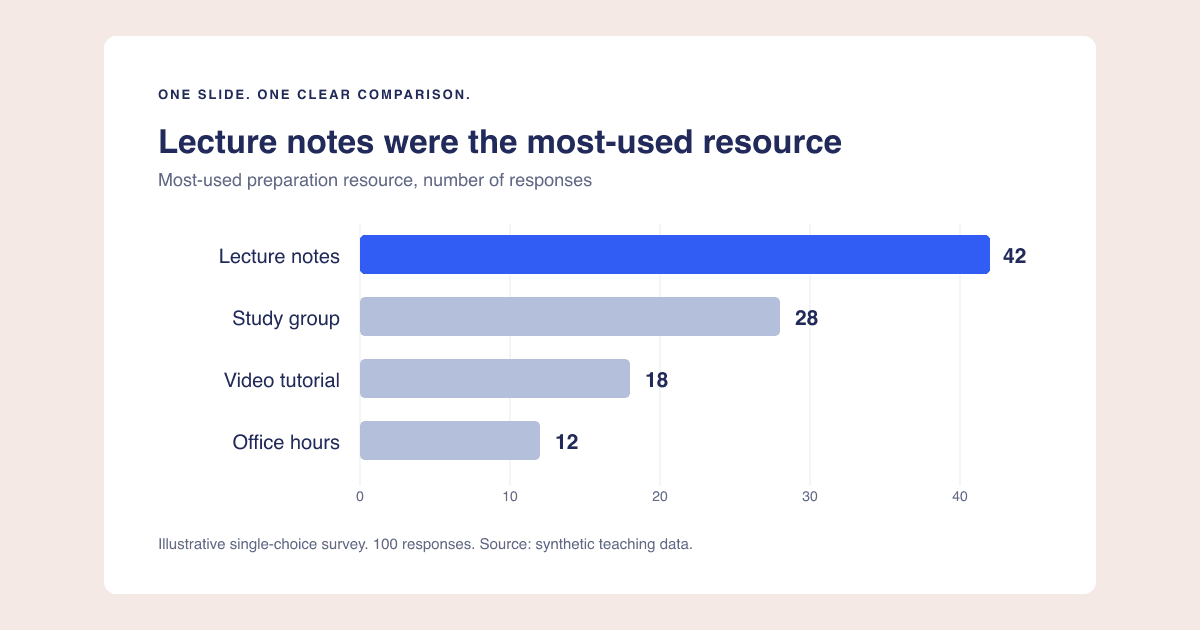
A chart can look excellent in its editor and fail on a slide. Labels shrink, the title loses its context, and the audience has seconds rather than minutes to understand it. Design for the destination from the beginning.
This workflow focuses on a single presentation-ready chart, not a dashboard or a full slide-deck generator. You can use it for a class presentation, a team update, or a client report without changing chart tools.
Give the slide one job
Write the question the slide must answer. For example: "Which resource did respondents use most when preparing an assignment?" Use the invented four-row survey dataset: lecture notes 42, study group 28, video tutorial 18, office hours 12.
The appropriate takeaway is "Lecture notes were the most-used resource." The chart cannot show which resource caused better grades, whether people liked the resource, or what every student does. Keep the title inside the boundaries of the evidence.
If a slide needs three unrelated conclusions, split it. If the audience must repeatedly filter data and investigate different questions, that may be a dashboard job instead. A slide is a selected view; it does not become a live dashboard merely because it contains a graph.
Choose a chart that works at a glance
A horizontal bar chart fits these four long category names and makes the ranking explicit. Start its scale at zero, use whole-number values, and keep all names visible. A legend would repeat information already available beside the bars.
For a trend, use time in its natural order. For a relationship, consider a scatter plot and explain what each point represents. For a few exact values that need lookup rather than a visual pattern, a small table can be the better presentation. Our chart-selection guide helps distinguish these tasks.
Lay out the slide before exporting
Use a title area, a chart area, and a short context note. The illustration below is an original layout example, not an automatic PlotsAlot slide export. It repeats the survey values so you can compare it to the CSV.
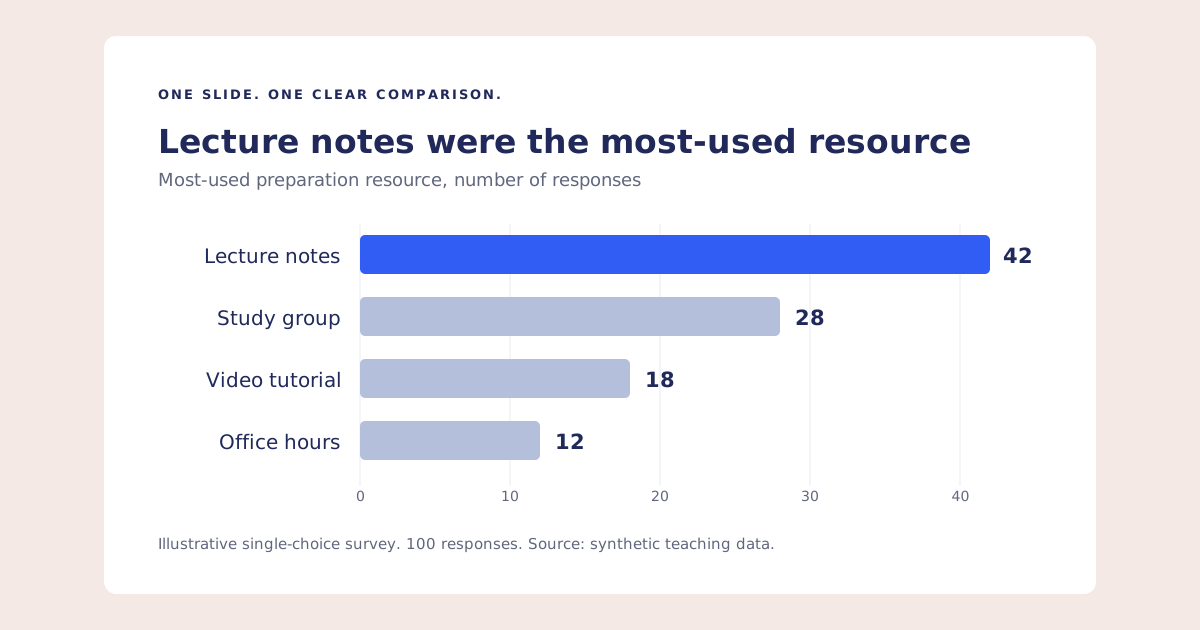
An example widescreen slide with the title Lecture notes were the most-used resource, four labeled bars showing 42, 28, 18, and 12, and a note identifying an illustrative 100-response survey.
On a 16:9 slide, avoid filling the whole canvas with a chart screenshot and then placing a second title over its existing title. Either keep the title inside the chart image or use the slide title, but make the hierarchy intentional. Leave room for the population, period, units, and source.
Keep text horizontal when possible. If labels collide, shorten them without changing their meaning, use horizontal bars, or give the chart more room. Exporting a larger image will not resolve two labels occupying the same space.
Inspect at presentation size
Insert the image into your actual slide, keeping its aspect ratio. View the slide in presentation mode on the display you have available. Check whether you can read the smallest important label without zooming in.
If not, enlarge chart text, remove nonessential annotations, or split the content. A higher-resolution image makes existing shapes sharper; it does not make their displayed size larger. Use our chart export resolution guide for the pixel calculation and a worked resizing example.
Use color deliberately, and identify groups by more than color alone. For an electronically shared deck, add a useful text alternative and provide the underlying table or explanatory notes where appropriate. See the accessible color workflow and W3C's complex-image guidance for those separate concerns.
Use the right sharing format
An image is a snapshot. It will not refresh when the source spreadsheet changes. For a recurring update, keep the original data and chart together so you can regenerate and review the next version.
PlotsAlot's supported presentation editor can produce clean PNG exports. An opt-in published snapshot is a separate sharing action: treat a public link as public and inspect what it contains before distributing it. Do not assume it is a private report, an editable slide, or a connected live dashboard. Unsupported chart types may retain their original renderer and export path.
For a conventional slide deck, downloading and inserting the image is often the clearest handoff. Inspect the downloaded file before sending the deck, including its edges, text, background, and source note.
Rehearse the handoff
Ask someone to look at the slide briefly, then explain what they saw. If they name the chart type but miss the finding, revisit the hierarchy. If they infer a stronger claim than the data supports, tighten the title and context.
Try the bar chart generator with the synthetic CSV, or use your existing charting workflow. Account-based AI generations have limits; free guide downloads do not require a signup. Finish with the design checklist, and keep the editable data for the next presentation rather than only retaining a screenshot.