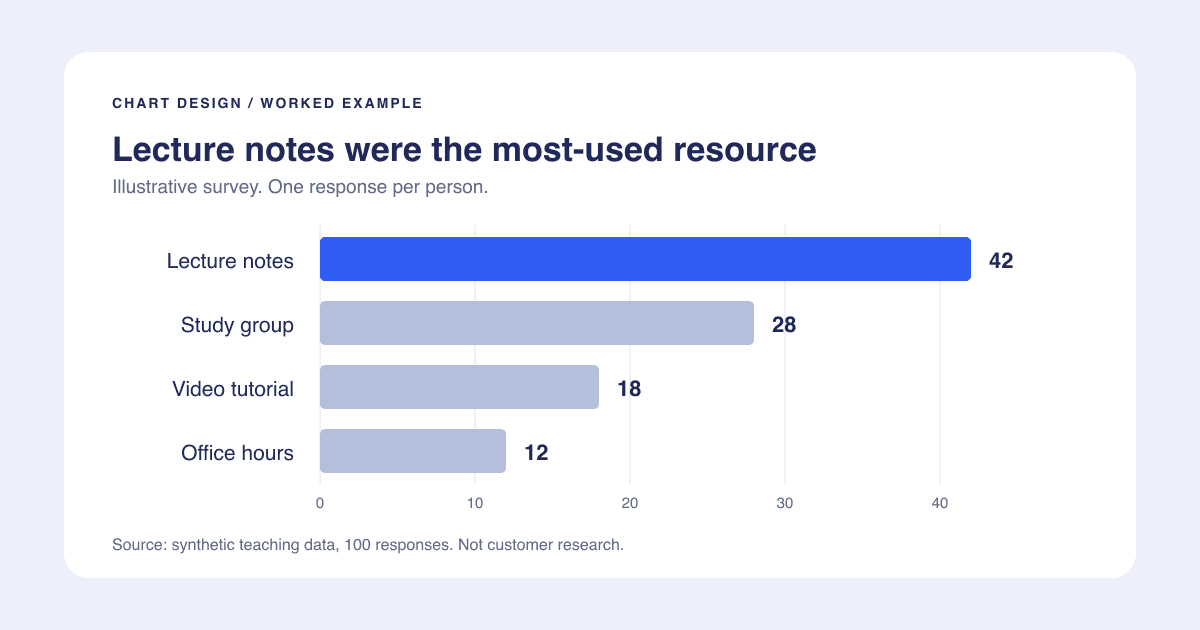
A presentation-ready chart is one your audience can read without you explaining how to read it. Start with a question, preserve the evidence, and remove anything that makes the answer harder to see. Decoration comes last.
This checklist walks through a small, reproducible example. The numbers are invented for teaching, not results from a PlotsAlot customer. You can download the sample CSV and follow along in your preferred chart tool.
Start with the question, not a palette
Suppose a class survey asks which resource students used most while preparing an assignment. Each person chooses one answer. Your task is to compare the counts, not show change over time or prove which resource works best.
| Resource | Responses |
|---|---|
| Lecture notes | 42 |
| Study group | 28 |
| Video tutorial | 18 |
| Office hours | 12 |
The total is 100, so the counts also happen to equal the percentages. That is a property of this example, not a general conversion rule. With 80 responses, 28 would represent 35%, not 28%.
A horizontal bar chart makes these categories easy to compare and leaves room for their names. A line would imply a sequence that does not exist. Before styling anything, check that your chart answers the question you actually have. Our chart-selection guide covers other questions and visual forms.
Build a readable hierarchy
Use three layers: the takeaway, the evidence, and the context.
- Takeaway: "Lecture notes were the most-used resource."
- Evidence: four bars, category labels, and the four response counts.
- Context: "Illustrative single-choice survey; 100 responses."
The title must not say lecture notes improved grades: this dataset contains no grades or causal evidence. It also must not say a majority used notes: 42 out of 100 is the largest group, but less than half. A precise sentence often does more for a chart than a dramatic color scheme.
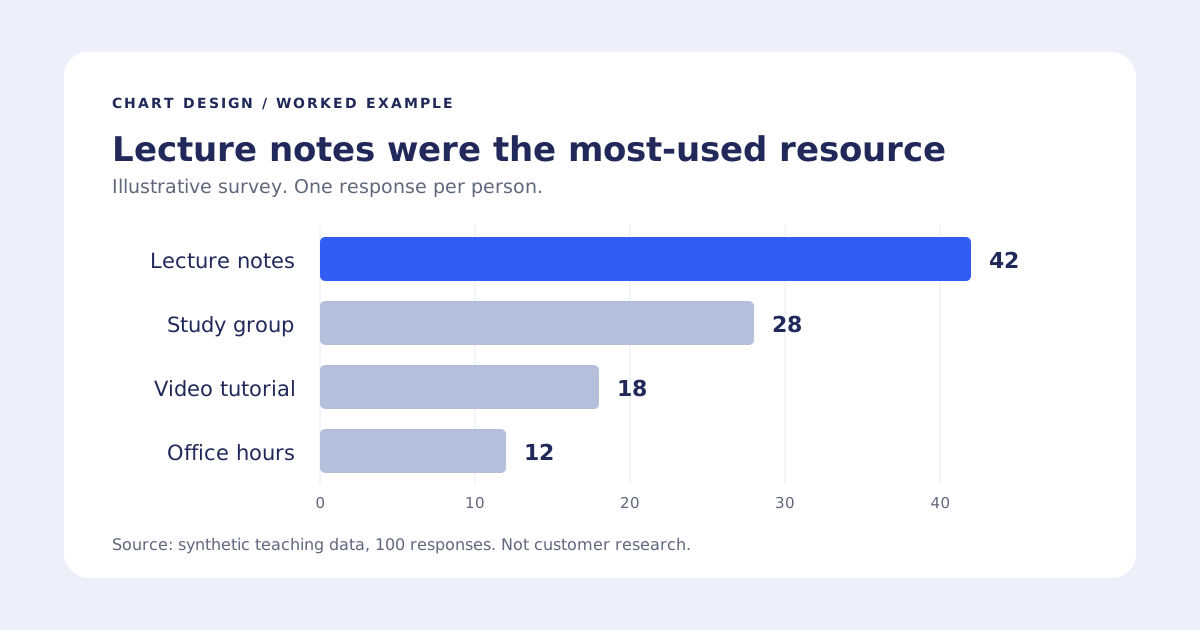
Four horizontal bars show lecture notes 42, study group 28, video tutorial 18, and office hours 12. The values also appear in the table above.
Fix the scale and ordering
Start this bar chart at zero. Bar length is the comparison, so cropping the baseline changes the visual relationship between 42 and 28. Set enough space after the longest bar for its label; do not stretch the plot just to fill every pixel.
Sort these independent categories from largest to smallest. Keep chronological, ordinal, or otherwise meaningful sequences in their natural order instead. "Sort everything" is not a design rule: sorting January, February, and March by value would make a trend chart harder to understand.
Show whole-number labels because the values are people. Avoid decimal places and an elaborate legend that repeats the category names. A few light reference lines can help readers estimate values; a heavy box around every edge rarely helps this comparison.
Give color a single job
Use a clear accent for lecture notes and quieter bars for the other resources. Keep all four text labels and values visible. The reader should still understand the ranking if the colors disappear.
Do not assign a different bright color to every bar unless the colors carry a useful, consistent meaning elsewhere. Do not color the smallest group red unless "small" actually means a problem. Office hours could be valuable despite having fewer responses.
See the accessible chart color workflow for checks beyond simply selecting a palette. A pretty palette is not an accessibility certification.
Inspect the destination, not just the editor
Place the chart on the actual slide or document page. View it at the size the audience will see, not zoomed into the editor. Check the longest category label, the source note, and the smallest number. If they are illegible, enlarge the text or simplify the figure before increasing export resolution.
For a slide, keep the chart and its title close together. For a report, include the underlying table when readers need exact values. For a web page, provide a meaningful text description and accessible data rather than relying on an image alone; W3C's complex-image guidance explains that distinction.
A final checklist you can reuse
- Does the visual answer one stated question?
- Are units, time period, population, and any exclusions visible?
- Are the scale and category order honest?
- Can someone understand it without distinguishing the colors?
- Are text and labels readable at the final display size?
- Does the title stay within what the data supports?
- Is a table or fuller description available when needed?
- Have you inspected the actual exported file?
Try the sample with the bar chart generator, then use the presentation-chart guide to place the result. PlotsAlot's AI workflow requires an account and has a generation allowance; reading these guides and downloading their examples does not.