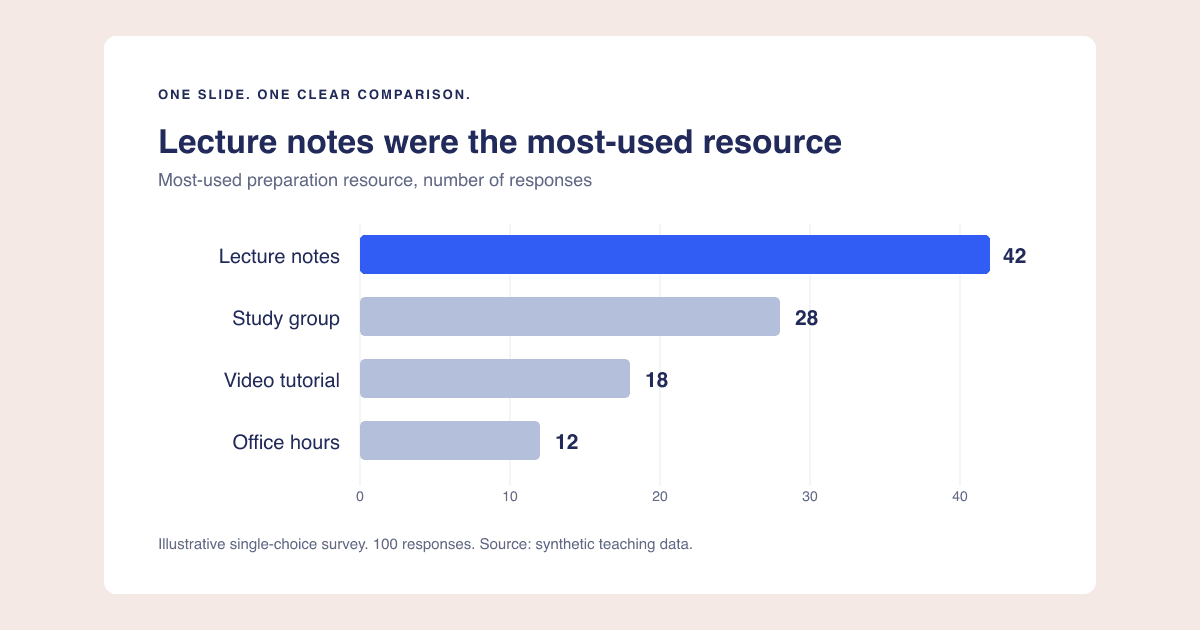
To export a sharp chart, match its pixel dimensions to the space where it will be displayed. To export a readable chart, make sure its labels are large enough in that space. Those are related but different checks.
A huge PNG with tiny labels can still make a poor slide. A carefully designed chart can look blurry if a small screenshot is stretched across a high-resolution display. Fix the layout first, then choose enough pixels for the destination.
Calculate the pixels you need
For a raster image, a useful starting calculation is:
Required image width = displayed width in CSS pixels x target device-pixel ratio.
If a chart appears 960 CSS pixels wide and you want two image pixels per CSS pixel, export it at least 1920 pixels wide. Keep the aspect ratio unchanged: a 16:9 image at 1920 pixels wide is 1080 pixels tall.
For a slide exported or displayed at a known pixel size, use the chart's share of that slide. A chart occupying half the width of a 1920-pixel slide needs about 960 image pixels across to avoid upscaling at that output size. Exporting at 1920 gives additional sampling headroom, but does not guarantee sharpness in every presentation or sharing pipeline.
| Intended use | Example chart area | Practical starting export |
|---|---|---|
| Web page at 1x | 960 x 540 CSS pixels | 960 x 540 PNG |
| Same web page at 2x | 960 x 540 CSS pixels | 1920 x 1080 PNG |
| Full-width 1080p slide | 1920 x 1080 output pixels | 1920 x 1080 PNG or larger |
| Four-inch-wide printed figure at a chosen 300 pixels per inch | 4 x 2.25 inches | 1200 x 675 PNG |
The print row is a calculation, not a universal publication requirement: 4 x 300 = 1200. Follow the actual journal, printer, or assignment specification. A DPI metadata value alone does not create detail that is absent from the pixels.
Why a 4x export can still have tiny text
Imagine a 960-pixel-wide chart canvas with 24-pixel labels. You place that chart 480 pixels wide on a page. Its text now appears about 12 pixels high, because the entire chart was reduced by half.
Exporting the same canvas at 4x creates a 3840-pixel image and proportionally more pixels for the text. But placing it at the same 480-pixel display width still yields roughly 12-pixel text. The text can be sharper, but it is not larger.
To improve readability, enlarge the labels in the chart before exporting, display the chart larger, or simplify the figure. A 2x or 4x button is not a substitute for the presentation layout checks.
Choose the file format for the job
PNG stores pixels and supports transparency. It is a practical handoff for slide and document workflows, especially when the chart must look the same outside its editor. Avoid repeatedly screenshotting a PNG and then stretching the screenshot.
SVG describes vector geometry and can keep lines and text sharp when scaled, but support, fonts, embedded images, and editing behavior vary by destination. Choose it only when your chart tool actually offers SVG and your receiving application handles it correctly. PlotsAlot's presentation export described here is PNG; this guide does not promise an SVG download option.
JPEG uses lossy compression that can introduce artifacts around thin lines and small text. It is usually a less suitable default for a flat chart than PNG. If your destination recompresses all images, inspect the final shared or exported document, not only the original chart file.
Troubleshoot the exported result
- Check the downloaded file's actual width and height rather than trusting a filename such as "high-resolution."
- Inspect at its intended display size. Do not judge readability only while zoomed in.
- Keep the original aspect ratio; stretching independently in two directions distorts the chart.
- Inspect the longest labels, minus signs, decimals, title edges, and source note for clipping.
- Check the background. Transparency can expose dark text to a dark slide or reveal an unexpected border.
- Open the final PDF or presentation that you will send. Its image processing may differ from your editor.
If text overlaps in the original chart, return to the editor. If only the final image is blurry, compare source and displayed dimensions. If the final deck differs from the PNG, investigate the deck's image handling before changing the underlying data.
Keep an inspectable source
Retain the dataset and the editable chart alongside the export. For practice, use the synthetic survey CSV and the chart design checklist. For real work, preserve units, period, source, and any relevant qualifications when moving the chart into a document.
A sharp image is a delivery outcome, not proof that the chart is accurate, accessible, or useful. Treat those as separate checks before calling the visual presentation-ready.